2022年浙江省职业院校技能大赛高职组云计算竞赛赛卷(样卷) 【任务1】基础运维任务[5分]
【题目1】基础环境配置
根据表1中的IP地址规划,设置各服务器节点的IP地址,确保网络正常通信,然后按以下要求配置服务器:
(1)设置控制节点主机名为controller,设置计算节点主机名为compute;
controller:
hostnamectl set-hostname controller
bash
compute:
hostnamectl set-hostname compute
bash
(2)修改hosts文件将IP地址映射为主机名;
1
2
3
4
5
6
[root@controller ~]# cat /etc/hosts 127.0.0.1 localhost localhost.localdomain localhost4 localhost4.localdomain4 ::1 localhost localhost.localdomain localhost6 localhost6.localdomain6 192.168.20.113 controller 192.168.20.120 compute
(3)关闭控制节点的防火墙,设置开机不启动;
1
2
3
[root@controller ~]# systemctl stop firewalld [root@controller ~]# systemctl disable firewalld
(4)设置SELinux为Permissive 模式。
1
2
3
4
5
6
7
8
9
10
11
12
13
14
15
16
17
18
19
20
21
22
23
[root@controller ~]# cat /etc/selinux/config # This file controls the state of SELinux on the system. # SELINUX=permissive # enforcing - SELinux security policy is enforced. # permissive - SELinux prints warnings instead of enforcing. # disabled - No SELinux policy is loaded. SELINUX=permissive # SELINUXTYPE= can take one of three two values: # targeted - Targeted processes are protected, # minimum - Modification of targeted policy. Only selected processes are protected. # mls - Multi Level Security protection. SELINUXTYPE=targeted
1
2
[root@controller ~]# setenforce 0 setenforce: SELinux is disabled
【题目2】镜像挂载
将提供的CentOS-7-x86_64-DVD-1804.iso和chinaskill_cloud_iaas.iso光盘镜像上传到controller节点/root目录下,然后在/opt目录下分别创建centos目录和openstack目录,并将镜像文件CentOS-7-x86_64-DVD-1804.iso挂载到centos目录下,将镜像文件chinaskill_cloud_iaas.iso挂载到openstack目录下。完成后提交控制节点的用户名、密码和IP地址到答题框。
略
【题目3】Yum源配置
在controller节点上利用/opt/centos目录中的软件包安装vsftpd服务,设置开机自启动,并使用ftp提供yum仓库服务(ftp共享的目录为/opt),分别设置controller节点和compute节点的yum源文件ftp.repo,其中ftp服务器地址使用主机名形式。完成后提交控制节点的用户名、密码和IP地址到答题框。
略
【题目4】时间同步配置
在controller节点上部署chrony服务器,允许其他节点同步时间,启动服务并设置为开机启动;在compute节点上指定controller节点为上游NTP服务器,重启服务并设为开机启动。完成后提交控制节点的用户名、密码和IP地址到答题框。
这里可以先下载iaas-xiandian
yum install -y iaas-xiandian
然后编辑变量
1
2
3
4
5
6
7
8
9
10
11
12
13
14
15
16
17
18
19
20
21
22
23
24
25
26
27
28
29
30
31
32
33
34
35
36
37
38
39
40
41
42
43
44
45
46
47
48
49
50
51
52
53
54
55
56
57
58
59
60
61
62
63
64
65
66
67
68
69
70
71
72
73
74
75
76
77
78
79
80
81
82
83
84
85
86
87
88
89
90
91
92
93
94
95
96
97
98
99
100
101
102
103
104
105
106
107
108
109
110
111
112
113
114
115
116
117
118
119
120
121
122
123
124
125
126
127
128
129
130
131
132
133
134
135
136
137
138
139
140
141
142
143
[root@controller ~]# cat /etc/xiandian/openrc.sh #--------------------system Config--------------------## #Controller Server Manager IP. example:x.x.x.x HOST_IP=192.168.20.113 #Controller HOST Password. example:000000 HOST_PASS=000000 #Controller Server hostname. example:controller HOST_NAME=controller #Compute Node Manager IP. example:x.x.x.x HOST_IP_NODE=192.168.20.120 #Compute HOST Password. example:000000 HOST_PASS_NODE=000000 #Compute Node hostname. example:compute HOST_NAME_NODE=compute #--------------------Chrony Config-------------------## #Controller network segment IP. example:x.x.0.0/16(x.x.x.0/24) network_segment_IP=192.168.20.0/24 #--------------------Rabbit Config ------------------## #user for rabbit. example:openstack RABBIT_USER=openstack #Password for rabbit user .example:000000 RABBIT_PASS=000000 #--------------------MySQL Config---------------------## #Password for MySQL root user . exmaple:000000 DB_PASS=000000 #--------------------Keystone Config------------------## #Password for Keystore admin user. exmaple:000000 DOMAIN_NAME=demo ADMIN_PASS=000000 DEMO_PASS=000000 #Password for Mysql keystore user. exmaple:000000 KEYSTONE_DBPASS=000000 #--------------------Glance Config--------------------## #Password for Mysql glance user. exmaple:000000 GLANCE_DBPASS=000000 #Password for Keystore glance user. exmaple:000000 GLANCE_PASS=000000 #--------------------Nova Config----------------------## #Password for Mysql nova user. exmaple:000000 NOVA_DBPASS=000000 #Password for Keystore nova user. exmaple:000000 NOVA_PASS=000000 #--------------------Neturon Config-------------------## #Password for Mysql neutron user. exmaple:000000 NEUTRON_DBPASS=000000 #Password for Keystore neutron user. exmaple:000000 NEUTRON_PASS=000000 #metadata secret for neutron. exmaple:000000 METADATA_SECRET=000000 #Tunnel Network Interface. example:x.x.x.x INTERFACE_IP=192.168.20.113 #注意这里是哪个节点就用哪个的ip #External Network Interface. example:eth1 INTERFACE_NAME=eth1 #External Network The Physical Adapter. example:provider Physical_NAME=provider #First Vlan ID in VLAN RANGE for VLAN Network. exmaple:101 minvlan=101 #Last Vlan ID in VLAN RANGE for VLAN Network. example:200 maxvlan=200 #--------------------Cinder Config--------------------## #Password for Mysql cinder user. exmaple:000000 CINDER_DBPASS=000000 #Password for Keystore cinder user. exmaple:000000 CINDER_PASS=000000 #Cinder Block Disk. example:md126p3 BLOCK_DISK=vdb1 #--------------------Swift Config---------------------## #Password for Keystore swift user. exmaple:000000 SWIFT_PASS=000000 #The NODE Object Disk for Swift. example:md126p4. OBJECT_DISK=vdb2 #The NODE IP for Swift Storage Network. example:x.x.x.x. STORAGE_LOCAL_NET_IP=192.168.20.120 #--------------------Heat Config----------------------## #Password for Mysql heat user. exmaple:000000 HEAT_DBPASS=000000 #Password for Keystore heat user. exmaple:000000 HEAT_PASS=000000 #--------------------Zun Config-----------------------## #Password for Mysql Zun user. exmaple:000000 ZUN_DBPASS=000000 #Password for Keystore Zun user. exmaple:000000 ZUN_PASS=000000 #Password for Mysql Kuryr user. exmaple:000000 KURYR_DBPASS=000000 #Password for Keystore Kuryr user. exmaple:000000 KURYR_PASS=000000 #--------------------Ceilometer Config----------------## #Password for Gnocchi ceilometer user. exmaple:000000 CEILOMETER_DBPASS=000000 #Password for Keystore ceilometer user. exmaple:000000 CEILOMETER_PASS=000000 #--------------------AODH Config----------------## #Password for Mysql AODH user. exmaple:000000 AODH_DBPASS=000000 #Password for Keystore AODH user. exmaple:000000 AODH_PASS=000000 #--------------------Barbican Config----------------## #Password for Mysql Barbican user. exmaple:000000 BARBICAN_DBPASS=000000 #Password for Keystore Barbican user. exmaple:000000 BARBICAN_PASS=000000
执行脚本
iaas-pre-host.sh
注意两个节点都要执行
【题目5】计算节点分区
在compute节点上利用空白分区划分2个100G分区。完成后提交计算节点的用户名、密码和IP地址到答题框。
1
2
3
4
5
6
7
8
9
10
11
12
13
14
15
16
17
18
19
20
21
22
23
24
25
26
27
28
29
30
31
32
33
34
35
[root@compute ~]# umount /dev/vdb [root@compute ~]# fdisk /dev/vdb Welcome to fdisk (util-linux 2.23.2). Changes will remain in memory only, until you decide to write them. Be careful before using the write command. Command (m for help): n Partition type: p primary (0 primary, 0 extended, 4 free) e extended Select (default p): p Using default response p Partition number (1-4, default 1): 1 First sector (2048-125829119, default 2048): Using default value 2048 Last sector, +sectors or +size{K,M,G} (2048-125829119, default 125829119): +20G Partition 1 of type Linux and of size 20 GiB is set Command (m for help): n Partition type: p primary (1 primary, 0 extended, 3 free) e extended Select (default p): p Partition number (2-4, default 2): 2 First sector (41945088-125829119, default 41945088): Using default value 41945088 Last sector, +sectors or +size{K,M,G} (41945088-125829119, default 125829119): +20G Partition 2 of type Linux and of size 20 GiB is set Command (m for help): w The partition table has been altered! Calling ioctl() to re-read partition table.
【任务2】OpenStack搭建任务[15分]
【适用平台】私有云
【题目1】基础安装
在控制节点和计算节点上分别安装iaas-xiandian软件包,根据表2配置两个节点脚本文件中的基本变量(配置脚本文件为/etc/xiandian/openrc.sh)。
表2 云平台配置信息
服务名称
变量
参数/密码
Mysql
root
000000
Keystone
000000
Glance
000000
Nova
000000
Neutron
000000
Heat
000000
Zun
000000
Keystone
DOMAIN_NAME
demo
Admin
000000
Rabbit
000000
Glance
000000
Nova
000000
Neutron
000000
Heat
000000
Zun
000000
Neutron
Metadata
000000
External Network
enp9s0(外网卡名)
完成后提交控制节点的用户名、密码和IP地址到答题框。
这里我们在配置时间同步时已经完成了
【题目2】数据库安装
在controller节点上使用iaas-install-mysql.sh 脚本安装Mariadb、Memcached、etcd服务。完成后提交控制节点的用户名、密码和IP地址到答题框。
1 [root@controller ~]# iaas-install-mysql.sh
【题目3】Keystone服务安装
在controller节点上使用iaas-install-keystone.sh 脚本安装Keystone服务。完成后提交控制节点的用户名、密码和IP地址到答题框。
1 [root@controller ~]# iaas-install-keystone.sh
【题目4】Glance安装
在controller节点上使用iaas-install-glance.sh脚本安装glance 服务。完成后提交控制节点的用户名、密码和IP地址到答题框。
1 [root@controller ~]# iaas-install-glance.sh
【题目5】Nova安装
在controller节点和compute节点上分别使用iaas-install-nova -controller.sh脚本、iaas-install-nova-compute.sh脚本安装Nova 服务。完成后提交控制节点的用户名、密码和IP地址到答题框。
controller :
1 [root@controller ~]# iaas-install-nova-controller.sh
compute:
1 [root@compute ~]# iaas-install-nova-compute.sh
【题目6】Neutron安装
在controller节点和compute节点上分别修改iaas-install-neutron-controller.sh脚本、iaas-install-neutron-compute.sh脚本分别安装 Neutron 服务,执行完脚本后,网络默认是vlan模式。完成后提交控制节点的用户名、密码和IP地址到答题框。
1
2
3
[root@controller ~]# vi /usr/local/bin/iaas-install-neutron-controller.sh tenant_network_types vxlan #将vxlan改为vlan
controller:
1 [root@controller ~]# iaas-install-neutron-controller.sh
compute:
1 [root@compute ~]# iaas-install-neutron-compute.sh
【题目7】Doshboard安装
在controller节点上使用iaas-install-dashboad.sh脚本安装dashboad服务。完成后提交控制节点的用户名、密码和IP地址到答题框。
1 [root@controller ~]# iaas-install-dashboard.sh
【题目8】Cinder安装
在控制节点和计算节点上分别使用iaas-install-cinder-controller.sh.sh脚本和iaas-install-cinder-compute.sh安装cinder服务。完成后提交控制节点的用户名、密码和IP地址到答题框。
controller
iaas-install-cinder-controller.sh
compute
iaas-install-cinder-compute.sh
【任务3】OpenStack运维任务[15分]
【适用平台】私有云
【题目1】镜像管理
在openstack私有云平台上,基于cirros-0.3.4-x86_64-disk.img镜像,使用命令创建一个名为cirros的镜像。完成后提交控制节点的用户名、密码和IP地址到答题框。
1
2
3
4
5
6
7
8
9
10
11
12
13
14
15
16
17
18
19
20
21
22
23
[root@controller ~]# openstack image create cirros --disk qcow2 --container bare < cirros-0.3.4-x86_64-disk.img +------------------+------------------------------------------------------+ | Field | Value | +------------------+------------------------------------------------------+ | checksum | ee1eca47dc88f4879d8a229cc70a07c6 | | container_format | bare | | created_at | 2022-07-01T06:04:17Z | | disk_format | qcow2 | | file | /v2/images/ace27239-b0e1-4ed5-a303-aee306ff5477/file | | id | ace27239-b0e1-4ed5-a303-aee306ff5477 | | min_disk | 0 | | min_ram | 0 | | name | cirros | | owner | 94e98329acc846e38579a511d0bc82a8 | | protected | False | | schema | /v2/schemas/image | | size | 13287936 | | status | active | | tags | | | updated_at | 2022-07-01T06:04:18Z | | virtual_size | None | | visibility | shared | +------------------+------------------------------------------------------+
【题目2】实例类型管理
在openstack私有云平台上,使用命令创建一个名为Fmin,ID为1,内存为1024 MB,磁盘为10 GB,vcpu数量为1的云主机类型。完成后提交控制节点的用户名、密码和IP地址到答题框。
1
2
3
4
5
6
7
8
9
10
11
12
13
14
15
16
[root@controller ~]# openstack flavor create Fmid --id 1 --disk 10 --ram 1024 --vcpus 1 +----------------------------+-------+ | Field | Value | +----------------------------+-------+ | OS-FLV-DISABLED:disabled | False | | OS-FLV-EXT-DATA:ephemeral | 0 | | disk | 10 | | id | 1 | | name | Fmid | | os-flavor-access:is_public | True | | properties | | | ram | 1024 | | rxtx_factor | 1.0 | | swap | | | vcpus | 1 | +----------------------------+-------+
【题目3】网络管理
在openstack私有云平台上,创建云主机网络extnet,子网extsubnet,虚拟机网段为192.168.y.0/24(其中y是vlan号),网关为192.168.y.1。完成后提交控制节点的用户名、密码和IP地址到答题框。
1
2
3
4
5
6
7
8
9
10
11
12
13
14
15
16
17
18
19
20
21
22
23
24
25
26
27
28
29
30
31
32
33
34
35
36
37
38
39
40
41
42
43
44
45
46
47
48
49
50
51
52
53
54
55
56
57
58
[root@controller ~]# openstack network create extnet --share --external --provider-physical-network provider --provider-network-type vlan +---------------------------+--------------------------------------+ | Field | Value | +---------------------------+--------------------------------------+ | admin_state_up | UP | | availability_zone_hints | | | availability_zones | | | created_at | 2022-07-01T06:06:11Z | | description | | | dns_domain | None | | id | 1e7b526c-fe6f-491e-bebd-5125b34c8f0d | | ipv4_address_scope | None | | ipv6_address_scope | None | | is_default | False | | is_vlan_transparent | None | | mtu | 1500 | | name | extnet | | port_security_enabled | True | | project_id | 94e98329acc846e38579a511d0bc82a8 | | provider:network_type | vlan | | provider:physical_network | provider | | provider:segmentation_id | 126 | | qos_policy_id | None | | revision_number | 5 | | router:external | External | | segments | None | | shared | True | | status | ACTIVE | | subnets | | | tags | | | updated_at | 2022-07-01T06:06:12Z | +---------------------------+--------------------------------------+ [root@controller ~]# openstack subnet create extsubnet --network extnet --subnet-range 192.168.23.0/24 --gateway 192.168.23.1 +-------------------+--------------------------------------+ | Field | Value | +-------------------+--------------------------------------+ | allocation_pools | 192.168.23.2-192.168.23.254 | | cidr | 192.168.23.0/24 | | created_at | 2022-07-01T06:07:25Z | | description | | | dns_nameservers | | | enable_dhcp | True | | gateway_ip | 192.168.23.1 | | host_routes | | | id | 730bd899-2daf-4395-a6a4-03fdbe7054f6 | | ip_version | 4 | | ipv6_address_mode | None | | ipv6_ra_mode | None | | name | extsubnet | | network_id | 1e7b526c-fe6f-491e-bebd-5125b34c8f0d | | project_id | 94e98329acc846e38579a511d0bc82a8 | | revision_number | 0 | | segment_id | None | | service_types | | | subnetpool_id | None | | tags | | | updated_at | 2022-07-01T06:07:25Z | +-------------------+--------------------------------------+
【题目4】云主机管理
在openstack私有云平台上,基于“cirros”镜像、flavor使用“Fmin”、extnet的网络,创建一台虚拟机VM1,启动VM1,并使用PC机能远程登录到VM1。提交控制节点的用户名、密码和IP地址到答题框。
1
2
3
4
5
6
7
8
9
10
11
12
13
14
15
16
17
18
19
20
21
22
23
24
25
26
27
28
29
30
31
32
33
34
35
[root@controller ~]# openstack server create VM1 --flavor Fmid --image cirros --network extnet +-------------------------------------+-----------------------------------------------+ | Field | Value | +-------------------------------------+-----------------------------------------------+ | OS-DCF:diskConfig | MANUAL | | OS-EXT-AZ:availability_zone | | | OS-EXT-SRV-ATTR:host | None | | OS-EXT-SRV-ATTR:hypervisor_hostname | None | | OS-EXT-SRV-ATTR:instance_name | | | OS-EXT-STS:power_state | NOSTATE | | OS-EXT-STS:task_state | scheduling | | OS-EXT-STS:vm_state | building | | OS-SRV-USG:launched_at | None | | OS-SRV-USG:terminated_at | None | | accessIPv4 | | | accessIPv6 | | | addresses | | | adminPass | e6ARiS6VGc2x | | config_drive | | | created | 2022-07-01T21:51:24Z | | flavor | Fmid (1) | | hostId | | | id | f36b7a73-8d87-413c-a9ac-440903c82aa0 | | image | cirros (ace27239-b0e1-4ed5-a303-aee306ff5477) | | key_name | None | | name | VM1 | | progress | 0 | | project_id | 94e98329acc846e38579a511d0bc82a8 | | properties | | | security_groups | name='default' | | status | BUILD | | updated | 2022-07-01T21:51:24Z | | user_id | e754b15e87104c81ad3554dc3bc64e25 | | volumes_attached | | +-------------------------------------+-----------------------------------------------+
【题目5】Cinder管理
在openstack私有云平台上,创建一个名为“lvm”的卷类型,创建一块卷设备,名字为block、类型为lvm的40G云硬盘,并附加到虚拟机VM1上。完成后提交控制节点IP地址、用户名和密码到答题框。
1
2
3
4
5
6
7
8
9
10
11
12
13
14
15
16
17
18
19
20
21
22
23
24
25
26
27
28
29
30
31
32
33
34
35
36
37
[root@controller ~]# cinder type-create lvm +--------------------------------------+------+-------------+-----------+ | ID | Name | Description | Is_Public | +--------------------------------------+------+-------------+-----------+ | 7ef26956-bb5e-425d-9630-65d91ea2db4b | lvm | - | True | +--------------------------------------+------+-------------+-----------+ [root@controller ~]# cinder create --name block 10 --volume-type lvm +--------------------------------+--------------------------------------+ | Property | Value | +--------------------------------+--------------------------------------+ | attachments | [] | | availability_zone | nova | | bootable | false | | consistencygroup_id | None | | created_at | 2022-05-09T03:28:56.000000 | | description | None | | encrypted | False | | id | 1dd10e41-f0c6-4feb-a7e8-ddb1d99b067f | | metadata | {} | | migration_status | None | | multiattach | False | | name | block | | os-vol-host-attr:host | None | | os-vol-mig-status-attr:migstat | None | | os-vol-mig-status-attr:name_id | None | | os-vol-tenant-attr:tenant_id | 0047a899f1b34aaba102c89bf5dbeab4 | | replication_status | None | | size | 1 | | snapshot_id | None | | source_volid | None | | status | creating | | updated_at | None | | user_id | 73ba03dfca0f4de6953a79e478cd035f | | volume_type | lvm | +--------------------------------+--------------------------------------+ [root@controller ~]# openstack server add volume vm1 block
【题目6】Raid管理
在OpenStack私有云平台,创建一台云主机,并创建一个40G大小的cinder块存储,将块存储连接到云主机,然后在云主机上对云硬盘进行操作。要求分出4个大小为5G的分区,使用这4个分区,创建名为/dev/md5、raid级别为5的磁盘阵列加一个热备盘(使用最后一个分区作为热备盘)。完成后提交云主机的用户名、密码和IP地址到答题框。
yum install -y mdadm
umount /mnt
1
2
3
4
5
6
7
8
9
10
11
12
13
14
15
16
17
18
19
20
21
22
23
24
25
26
27
28
29
30
31
32
33
34
35
36
37
38
39
40
41
42
43
44
45
46
47
48
49
50
51
52
53
54
55
56
57
58
59
60
61
62
63
64
65
66
67
[root@raid ~]# fdisk /dev/vdb Welcome to fdisk (util-linux 2.23.2). Changes will remain in memory only, until you decide to write them. Be careful before using the write command. Command (m for help): n Partition type: p primary (0 primary, 0 extended, 4 free) e extended Select (default p): Using default response p Partition number (1-4, default 1): First sector (2048-104857599, default 2048): Using default value 2048 Last sector, +sectors or +size{K,M,G} (2048-104857599, default 104857599): +5G Partition 1 of type Linux and of size 5 GiB is set Command (m for help): n Partition type: p primary (1 primary, 0 extended, 3 free) e extended Select (default p): Using default response p Partition number (2-4, default 2): First sector (10487808-104857599, default 10487808): Using default value 10487808 Last sector, +sectors or +size{K,M,G} (10487808-104857599, default 104857599): +5G Partition 2 of type Linux and of size 5 GiB is set Command (m for help): n Partition type: p primary (2 primary, 0 extended, 2 free) e extended Select (default p): Using default response p Partition number (3,4, default 3): First sector (20973568-104857599, default 20973568): Using default value 20973568 Last sector, +sectors or +size{K,M,G} (20973568-104857599, default 104857599): +5G Partition 3 of type Linux and of size 5 GiB is set Command (m for help): n Partition type: p primary (3 primary, 0 extended, 1 free) e extended Select (default e): p Selected partition 4 First sector (31459328-104857599, default 31459328): Using default value 31459328 Last sector, +sectors or +size{K,M,G} (31459328-104857599, default 104857599): +5G Partition 4 of type Linux and of size 5 GiB is set Command (m for help): t Partition number (1-4, default 4): 1 Hex code (type L to list all codes): fd Changed type of partition 'Linux' to 'Linux raid autodetect' Command (m for help): t Partition number (1-4, default 4): 2 Hex code (type L to list all codes): fd Changed type of partition 'Linux' to 'Linux raid autodetect' Command (m for help): t Partition number (1-4, default 4): 3 Hex code (type L to list all codes): fd Changed type of partition 'Linux' to 'Linux raid autodetect' Command (m for help): t Partition number (1-4, default 4): 4 Hex code (type L to list all codes): fd Changed type of partition 'Linux' to 'Linux raid autodetect' Command (m for help): w The partition table has been altered! Calling ioctl() to re-read partition table. Syncing disks.
mdadm -C /dev/md5 -l 5 -n 3 -x 1 /dev/vdb1 /dev/vdb2 /dev/vdb3 /dev/vdb4
1
2
3
4
5
6
7
8
9
10
11
12
13
14
15
16
17
18
19
20
21
22
23
24
25
26
27
[root@raid ~]# mdadm -D /dev/md5 /dev/md5: Version : 1.2 Creation Time : Fri Apr 22 07:34:32 2022 Raid Level : raid5 Array Size : 10475520 (9.99 GiB 10.73 GB) Used Dev Size : 5237760 (5.00 GiB 5.36 GB) Raid Devices : 3 Total Devices : 4 Persistence : Superblock is persistent Update Time : Fri Apr 22 07:40:00 2022 State : clean Active Devices : 3 Working Devices : 4 Failed Devices : 0 Spare Devices : 1 Layout : left-symmetric Chunk Size : 512K Consistency Policy : resync Name : raid.novalocal:5 (local to host raid.novalocal) UUID : a7ee7f6c:33942c54:654cf6c9:880cc731 Events : 20 Number Major Minor RaidDevice State 0 253 17 0 active sync /dev/vdb1 1 253 18 1 active sync /dev/vdb2 4 253 19 2 active sync /dev/vdb3 3 253 20 - spare /dev/vdb4
【题目7】数据库主从管理
使用OpenStack私有云平台,创建两台云主机vm1和vm2,在这两台云主机上分别安装数据库服务,并配置成主从数据库,vm1节点为主库,vm2节点为从库(数据库密码设置为000000)。完成后提交数据库从节点vm2节点的用户名、密码和IP地址到答题框。
(1)修改主机名
mysql1
hostnamectl set-hostname mysql1
bash
exit
mysql2
hostnamectl set-hostname mysql2
bash
exit
(2)配置hosts文件
两个节点配置/etc/hosts文件,修改为如下
vi /etc/hosts
1
2
3
4
5
6
7
127.0.0.1 localhost localhost.localdomain localhost4 localhost4.localdomain4 ::1 localhost localhost.localdomain localhost6 localhost6.localdomain6 192.168.20.107 mysql1 192.168.20.109 mysql2 192.168.20.137 mycat
(3)配置YUM源
两个节点均使用提供的mariadb–10.3.23-repo.tar.gz的压缩包,解压并放在/opt目录下,进入/etc/yum.repos.d目录下,将原来的repo文件移除,新建local.repo文件并编辑内容,具体操作命令如下:
curl -O http://172.19.25.11/mariadb-10.3.23-repo.tar.gz
tar -zxvf mariadb-10.3.23-repo.tar.gz -C /opt
rm -rf /etc/yum.repos.d/*
vi /etc/yum.repos.d/local.repo
1
2
3
4
5
[mariadb] name=mariadb baseurl=file:///opt/ gpgcheck=0 enabled=1
(4)安装数据库服务并启动
配置完毕后,两个节点安装数据库服务,命令如下:
yum install -y mariadb mariadb-server
systemctl start mariadb
systemctl enable mariadb
(5)初始化数据库
两个节点初始化数据库,配置数据库root密码为000000,命令如下:
mysql_secure_installation
1
2
3
4
5
6
7
8
9
10
11
12
13
14
15
16
17
18
19
20
21
22
23
24
25
26
27
28
29
30
31
32
33
34
35
36
37
38
39
40
41
42
43
44
45
46
47
48
49
50
51
52
53
54
55
56
57
58
59
60
61
62
63
64
65
66
/usr/bin/mysql_secure_installation: line 379: find_mysql_client: command not found NOTE: RUNNING ALL PARTS OF THIS SCRIPT IS RECOMMENDED FOR ALL MariaDB SERVERS IN PRODUCTION USE! PLEASE READ EACH STEP CAREFULLY! In order to log into MariaDB to secure it, we'll need the current password for the root user. If you've just installed MariaDB, and you haven't set the root password yet, the password will be blank, so you should just press enter here. Enter current password for root (enter for none): #默认按Enter键 OK, successfully used password, moving on... Setting the root password ensures that nobody can log into the MariaDB root user without the proper authorisation. Set root password? [Y/n] y New password: #输入数据库root密码000000 Re-enter new password: #再次输入密码000000 Password updated successfully! Reloading privilege tables.. ... Success! By default, a MariaDB installation has an anonymous user, allowing anyone to log into MariaDB without having to have a user account created for them. This is intended only for testing, and to make the installation go a bit smoother. You should remove them before moving into a production environment. Remove anonymous users? [Y/n] y ... Success! Normally, root should only be allowed to connect from 'localhost'. This ensures that someone cannot guess at the root password from the network. Disallow root login remotely? [Y/n] n ... skipping. By default, MariaDB comes with a database named 'test' that anyone can access. This is also intended only for testing, and should be removed before moving into a production environment. Remove test database and access to it? [Y/n] y \- Dropping test database... ... Success! \- Removing privileges on test database... ... Success! Reloading the privilege tables will ensure that all changes made so far will take effect immediately. Reload privilege tables now? [Y/n] y ... Success! Cleaning up... All done! If you've completed all of the above steps, your MariaDB installation should now be secure. Thanks for using MariaDB!
(6)配置mysql1主节点
修改mysql1节点的数据库配置文件,在配置文件/etc/my.cnf.d/server.cnf中的[mysqld]增添如下内容。
1
2
3
4
5
6
[root@mysql1 ~]# cat /etc/my.cnf.d/server.cnf ... ... [mysqld] log_bin = mysql-bin #记录操作日志 binlog_ignore_db = mysql #不同步MySQL系统数据库 server_id = 12 #数据库集群中的每个节点id都要不同,一般使用IP地址的最后段的数字,例如172.30.11.12,server_id就写12
重启数据库服务,并进入数据库,命令如下:
1
2
3
4
5
6
7
8
9
10
11
[root@mysql1 ~]# systemctl restart mariadb [root@mysql1 ~]# mysql -uroot -p000000 Welcome to the MariaDB monitor. Commands end with ; or \g. Your MariaDB connection id is 9 Server version: 10.3.23-MariaDB-log MariaDB Server Copyright (c) 2000, 2018, Oracle, MariaDB Corporation Ab and others. Type 'help;' or '\h' for help. Type '\c' to clear the current input statement. MariaDB [(none)]>
在mysql1节点,授权在任何客户端机器上可以以root用户登录到数据库,然后在主节点上创建一个user用户连接节点mysql2,并赋予从节点同步主节点数据库的权限。命令如下:
1
2
3
4
5
6
7
MariaDB [(none)]> grant all privileges on *.* to root@'%' identified by "000000"; Query OK, 0 rows affected (0.00 sec) MariaDB [(none)]> grant replication slave on *.* to 'user'@'mysql2' identified by '000000'; Query OK, 0 rows affected (0.00 sec)
(7)配置mysql2从节点
修改mysql2节点的数据库配置文件,在配置文件/etc/my.cnf.d/server.cnf中的[mysqld]增添如下内容。
[root@mysql2 ~]# cat /etc/my.cnf.d/server.cnf
1
2
3
4
5
6
7
8
... ... [mysqld] log_bin = mysql-bin #记录操作日志 binlog_ignore_db = mysql #不同步MySQL系统数据库 server_id = 13 #数据库集群中的每个节点id都要不同,一般使用IP地址的最后段的数字,例如172.30.11.13,server_id就写13 ... ...
修改完配置文件后,重启数据库服务,并在从节点mysql2上登录MariaDB数据库,配置从节点连接主节点的连接信息。master_host为主节点主机名mysql1,master_user为上一步中创建的用户user,命令如下:
1
2
3
4
5
6
7
8
9
10
11
[root@mysql2 ~]# systemctl restart mariadb [root@mysql2 ~]# mysql -uroot -p000000 Welcome to the MariaDB monitor. Commands end with ; or \g. Your MariaDB connection id is 9 Server version: 10.3.23-MariaDB-log MariaDB Server Copyright (c) 2000, 2018, Oracle, MariaDB Corporation Ab and others. Type 'help;' or '\h' for help. Type '\c' to clear the current input statement MariaDB [(none)]> change master to master_host='mysql1',master_user='user',master_password='000000'; Query OK, 0 rows affected (0.01 sec)
配置完毕主从数据库之间的连接信息之后,开启从节点服务。使用show slave status\G命令,并查看从节点服务状态,如果Slave_IO_Running和Slave_SQL_Running的状态都为YES,则从节点服务开启成功。命令如下:
1
2
3
4
5
6
7
8
9
10
11
12
13
14
15
MariaDB [(none)]> start slave; MariaDB [(none)]> show slave status\G *************************** 1. row *************************** Slave_IO_State: Waiting for master to send event Master_Host: mysql1 Master_User: user Master_Port: 3306 Connect_Retry: 60 ........ Slave_IO_Running: Yes Slave_SQL_Running: Yes .........
可以看到Slave_IO_Running和Slave_SQL_Running的状态都是Yes,配置数据库主从集群成功。
【题目8】云平台安全策略提升
使用OpenStack私有云平台,通过提供的相关软件包,安装必要组件,将私有云平台的访问策略从http提升至https。完成后提交控制节点的用户名、密码和IP地址到答题框。
yum -y install mod_ssl
1
2
3
4
5
6
vi /etc/openstack-dashboard/local_settings ##在DEBUG = False下增加4行 USE_SSL = True CSRF_COOKIE_SECURE = True ##原文中有,去掉注释即可 SESSION_COOKIE_SECURE = True ##原文中有,去掉注释即可 SESSION_COOKIE_HTTPONLY = True
1
2
3
vi /etc/httpd/conf.d/ssl.conf ##将SSLProtocol all -SSLv2 -SSLv3改成: SSLProtocol all -SSLv2
systemctl restart httpd
systemctl restart memcached
【任务4】OpenStack运维开发任务[15分]
【适用平台】私有云
本任务只公布考试范围,不公布赛题
此任务包含2-4个子任务,内容涉及编写Python脚本调用OpenStack API对Openstack云平台进行管理和运维。使用自动化运维工具ansible对云主机进行批量系统配置、批量程序部署、批量运行命令等运维操作。
【任务5】Docker CE及私有仓库安装任务(5分)
【适用平台】私有云
【题目1】安装Docker CE和Docker Compose
在master、node各节点中分别安装DockerCE和docker-compose。完成后提交master节点的用户名、密码和IP到答题框。
脚本安装
【题目2】安装私有仓库
脚本安装
【题目3】容器编排
在master节点上编写/root/wordpress/docker-compose.yaml文件,具体要求如下:
(1)容器名称:wordpress;镜像:wordpress:latest;端口映射:82:80;
(2)容器名称:mysql;镜像:mysql:5.6;
(3)MySQL root用户密码:123456;
(4)创建数据库wordpress。
完成后编排部署WordPress,并提交master节点的用户名、密码和IP到答题框。
cd /root
vi docker-compose.yaml
1
2
3
4
5
6
7
8
9
10
11
12
13
14
15
16
17
18
19
20
21
22
version: '3.3' services: mysql: image: mysql:5.6 restart: always environment: MYSQL_ROOT_PASSWORD: 123456 MYSQL_DATABASE: wordpress MYSQL_USER: wordpress MYSQL_PASSWORD: wordpress wordpress: depends_on: - mysql image: wordpress:latest ports: - "82:80" restart: always environment: WORDPRESS_DB_HOST: mysql:3306 WORDPRESS_DB_USER: wordpress WORDPRESS_DB_PASSWORD: wordpress WORDPRESS_DB_NAME: wordpress
开始部署
docker-compose up -d
查看是否部署成功
docker ps
打开浏览器访问192.168.20.132:82
【题目4】容器基础操作
在master节点上停止并删除上述部署的wordpress容器。完成后提交master节点的用户名、密码和IP到答题框。
docker-compose down
【任务6】基于Docker容器的web应用系统部署[15分]
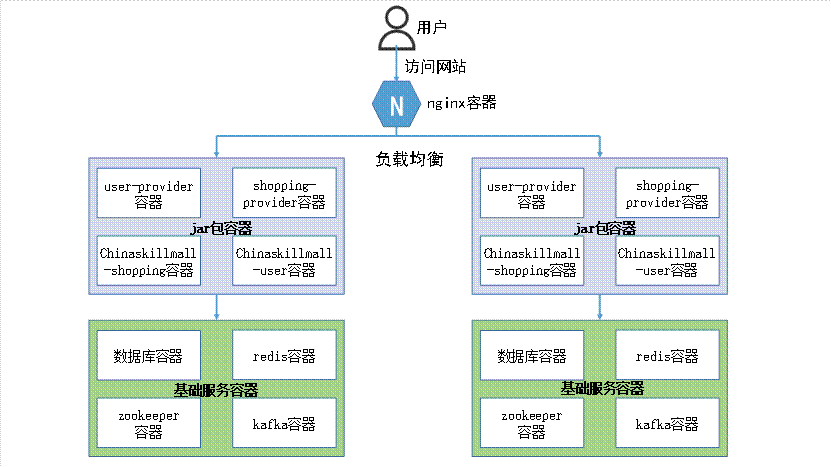
将该公司开发的基于微服务架构的web商城应用系统实现全容器化部署。商城应用系统架构图如下:
模块
使用技术
备注
gpmall.sql
Mysql
网站的数据库
dist目录
Nginx
网站的前端项目
gpmall-shopping
web项目
8081端口,商品/购物车/首页渲染等交互
gpmall-user
8082端口,提供用户相关的交互,如登录、注册、个人中心等
user-provider
后端服务
提供用户相关服务
shopping-provider
提供购物车、推荐商品、商品等服务
【适用平台】私有云
【题目1】容器化部署Redis
在master节点上编写/root/redis/Dockerfile文件,基于提供的软件包gpmall-single.tar构建chinaskill-redis:v1.1镜像,具体要求如下:
(1)基础镜像:centos:centos7.5.1804;
(2)作者:Chinaskill;
(3)修改配置文件中的bind 127.0.0.1为bind 0.0.0.0;
(4)设置Redis免密,并关闭保护模式;
(5)开放端口:6379;
(6)设置服务开机自启。
完成后构建镜像,并提交master节点的用户名、密码和IP到答题框。
vi Dockerfile
1
2
3
4
5
6
7
8
FROM centos:centos7.5.1804 MAINTAINER Chinaskill RUN rm -rf /etc/yum.repos.d/* ADD local.repo /etc/yum.repos.d/ RUN yum -y install redis RUN sed -i 's/bind 127.0.0.1/bind 0.0.0.0/g' /etc/redis.conf && sed -i 's/protected-mode yes/protected-mode no/g' /etc/redis.conf EXPOSE 6379 CMD ["redis-server","/etc/redis.conf"]
vi local.repo
1
2
3
4
5
6
7
8
9
[docker] baseurl=http://172.19.25.11/paas/kubernetes-repo/ gpgcheck=0 enabled=1 [centos] baseurl=ftp://192.168.20.132/centos gpgcheck=0 enabled=1
docker build -t chinaskill-redis:v1.1 .
【题目2】容器化部署MariaDB
在master节点上编写/root/mariadb/Dockerfile文件,基于提供的软件包gpmall-single.tar构建chinaskill-mariadb:v1.1镜像,具体要求如下:
(1)基础镜像:centos:centos7.5.1804;
(2)作者:Chinaskill;
(3)设置数据库密码:123456;
(4)创建数据库gpmall并导入数据库文件gpmall.sql;
(5)设置字符编码:UTF-8;
(6)开放端口:3306;
(7)设置服务开机自启。
完成后构建镜像,并提交master节点的用户名、密码和IP到答题框。
vi Dockerfile
1
2
3
4
5
6
7
8
9
10
11
12
FROM centos:centos7.5.1804 MAINTAINER chinaskill RUN rm -rf /etc/yum.repos.d/* ADD local.repo /etc/yum.repos.d/ ADD gpmall.sql /opt/ ADD start.sh /opt/ RUN yum -y install mariadb-server \ && chmod +x /opt/start.sh \ && /opt/start.sh EXPOSE 3306 ENV LC_ALL en_US.UTF-8 CMD mysqld_safe
cp /root/redis/local.repo /root/mariadb/
cp /opt/ChinaskillMall/gpmall.sql /root/mariadb/
vi start.sh
1
2
3
4
5
6
7
#!/bin/bash mysql_install_db --user=mysql mysqld_safe & sleep 3 mysqladmin -u root password '123456' mysql -uroot -p123456 -e "grant all privileges on *.* to 'root'@'%' identified by '123456';" mysql -uroot -p123456 -e "create database gpmall;use gpmall;source /opt/gpmall.sql;"
docker build -t chinaskill-mariadb:v1.1 .
【题目3】容器化部署Zookeeper
在master节点上编写/root/zookeeper/Dockerfile文件,基于提供的软件包gpmall-single.tar构建chinaskill-zookeeper:v1.1镜像,具体要求如下:
(1)基础镜像:centos:centos7.5.1804;
(2)作者:Chinaskill;
(3)开放端口:2181;
(4)设置服务开机自启。
完成后构建镜像,使用构建的镜像运行容器myzookeeper,并提交master节点的用户名、密码和IP到答题框。
vi Dockerfile
1
2
3
4
5
6
7
8
9
FROM centos:centos7.5.1804 MAINTAINER Chinaskill EXPOSE 2181 RUN rm -rf /etc/yum.repos.d/* ADD local.repo /etc/yum.repos.d/ftp.repo ADD zookeeper-3.4.14.tar.gz /opt RUN yum -y install java-1.8.0-openjdk java-1.8.0-openjdk-devel \ && mv /opt/zookeeper-3.4.14/conf/zoo_sample.cfg /opt/zookeeper-3.4.14/conf/zoo.cfg CMD ["sh","-c","/opt/zookeeper-3.4.14/bin/zkServer.sh start && tail -f /etc/shadow"]
cp /opt/ChinaskillMall/zookeeper-3.4.14.tar.gz /root/zookeeper/
docker build -t chinaskill-zookeeper:v1.1 .
【题目4】容器化部署Kafka
在master节点上编写/root/kafka/Dockerfile文件,基于提供的软件包gpmall-single.tar构建chinaskill-kafka:v1.1镜像,具体要求如下:
(1)基础镜像:centos:centos7.5.1804;
(2)作者:Chinaskill;
(3)开放端口:9092;
(4)设置服务开机自启。
完成后构建镜像,并提交master节点的用户名、密码和IP到答题框。
vi Dockerfile
1
2
3
4
5
6
7
8
9
10
FROM centos:centos7.5.1804 MAINTAINER Chinaskill RUN rm -rf /etc/yum.repos.d/* ADD local.repo /etc/yum.repos.d/ ADD zookeeper-3.4.14.tar.gz /opt ADD kafka_2.11-1.1.1.tgz /opt RUN yum install -y java-1.8.0-openjdk java-1.8.0-openjdk-devel \ && mv /opt/zookeeper-3.4.14/conf/zoo_sample.cfg /opt/zookeeper-3.4.14/conf/zoo.cfg EXPOSE 9092 CMD ["sh","-c","/opt/zookeeper-3.4.14/bin/zkServer.sh start && /opt/kafka_2.11-1.1.1/bin/kafka-server-start.sh /opt/kafka_2.11-1.1.1/config/server.properties"]
cp /opt/ChinaskillMall/kafka_2.11-1.1.1.tgz /root/kafka/
cp /opt/ChinaskillMall/zookeeper-3.4.14.tar.gz /root/kafka/
cp /root/redis/local.repo /root/kafka
docker build -t chinaskill-kafka:v1.1 .
【题目5】容器化部署Nginx
在master节点上编写/root/nginx/Dockerfile文件,基于提供的软件包gpmall-single.tar构建chinaskill-nginx:v1.1镜像,具体要求如下:
(1)基础镜像:centos:centos7.5.1804;
(2)作者:Chinaskill;
(3)编写/etc/nginx/conf.d/default.conf文件,配置反向代理,将80端口请求转发到8081、8082和8083;
(4)将dist.tar解压并复制到/usr/share/nginx/html/目录下;
(5)开放端口:80、443、8081、8082、8083;
(6)设置服务开机自启。
完成后构建镜像,并提交master节点的用户名、密码和IP到答题框。
vi Dockerfile
1
2
3
4
5
6
7
8
9
10
11
12
13
14
15
FROM centos:centos7.5.1804 MAINTAINER Chinaskill RUN rm -rf /etc/yum.repos.d/* ADD local.repo /etc/yum.repos.d/ ADD *.jar /root/ ADD setup.sh /root/ RUN yum install -y nginx java-1.8.0-openjdk java-1.8.0-openjdk-devel RUN sed -i '1a location /shopping { proxy_pass http://127.0.0.1:8081; }' /etc/nginx/conf.d/default.conf RUN sed -i '2a location /user { proxy_pass http://127.0.0.1:8082; }' /etc/nginx/conf.d/default.conf RUN sed -i '3a location /casher { proxy_pass http://127.0.0.1:8083; }' /etc/nginx/conf.d/default.conf RUN chmod +x /root/setup.sh RUN rm -rf /usr/share/nginx/html/ EXPOSE 80 443 8081 8082 8083 ADD dist/ /usr/share/nginx/html/ CMD ["nginx","-g","daemon off;"]
vi local.repo
1
2
3
4
5
6
7
8
9
10
11
12
13
14
[centos] baseurl=ftp://192.168.20.132/centos gpgcheck=0 enabled=1 [docker] baseurl=ftp://192.168.20.132/kubernetes-repo gpgcheck=0 enabled=1 [gpmal] baseurl=http://172.19.25.11/paas/ChinaskillMall/gpmall-repo gpgcheck=0 enabled=1
cp /opt/ChinaskillMall/*.jar /root/nginx/
cp /opt/ChinaskillMall/dist/ /root/nginx/
vi setup.sh
1
2
3
4
5
6
7
8
9
#!/bin/bash nohup java -jar /root/shopping-provider-0.0.1-SNAPSHOT.jar & sleep 5 nohup java -jar /root/user-provider-0.0.1-SNAPSHOT.jar & sleep 5 nohup java -jar /root/gpmall-shopping-0.0.1-SNAPSHOT.jar & sleep 5 nohup java -jar /root/gpmall-user-0.0.1-SNAPSHOT.jar & sleep 5
docker build -t chinaskill-nginx:v1.1 .
【题目6】编排部署GPMall商城
在master节点上编写/root/chinaskillmall/docker-compose.yaml文件,具体要求如下:
(1)容器1名称:mysql;镜像:chinaskill-mariadb:v1.1;端口映射:3306:3306;
(2)容器2名称:redis;镜像:chinaskill-redis:v1.1;端口映射:6379:6379;
(3)容器3名称:kafka;镜像:chinaskill-kafka:v1.1;端口映射:9092:9092;
(4)容器4名称:zookeeper;镜像:chinaskill-zookeeper:v1.1;端口映射:2181:2181;
(5)容器5名称:nginx;镜像:chinaskill-nginx:v1.1;端口映射:80:80,443:443。
完成后编排部署GPMall,并提交master节点的用户名、密码和IP到答题框。
vi docker-compose.yaml
1
2
3
4
5
6
7
8
9
10
11
12
13
14
15
16
17
18
19
20
21
22
23
24
25
26
27
28
29
30
31
32
33
34
35
36
37
38
version: '3.3' services: mall-mysql: image: chinaskill-mariadb:v1.1 ports: - 3306:3306 mall-redis: image: chinaskill-redis:v1.1 ports: - 6379:6379 mall-kafka: image: chinaskill-kafka:v1.1 ports: - 9092:9092 mall-zookeeper: image: chinaskill-zookeeper:v1.1 ports: - 2181:2181 mall-nginx: image: chinaskill-nginx:v1.1 depends_on: - mall-mysql - mall-redis - mall-zookeeper - mall-kafka links: - mall-mysql:mysql.mall - mall-redis:redis.mall - mall-zookeeper:zookeeper.mall - mall-kafka:kafka.mall ports: - 83:80 - 443:443 command: ["sh","-c","/root/setup.sh && nginx && tail -f /etc/shadow"]
docker-compose up -d
查看是否开启成功
docker ps